
Objective
Create a folder for grouping two or more Quick Keys together into the same space.
Setup
- Retail POS for Mac or PC
Steps
- Click Sell
- Click Settings
- In the Quick Keys section, find your current quick keys layout. This will be labelled "Current layout"
- Click the pencil icon
- In the Add Products section, find two quick keys you want to group together into the same folder
- Click and drag one quick key on to the other
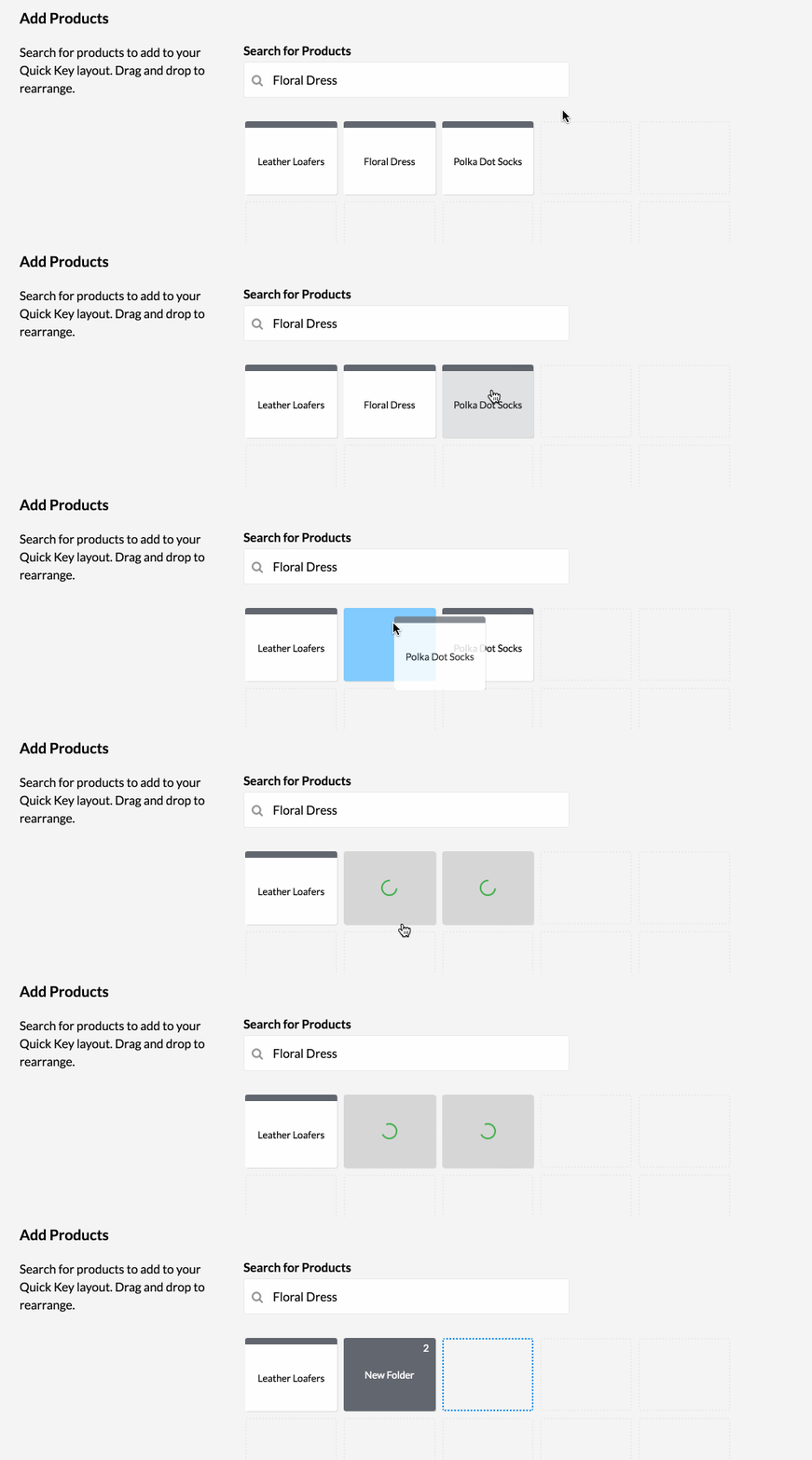
- Once created click on "New Folder."
- Click the pencil icon
- Name the Folder Label
- Choose Folder Color
- Click Save
Comments
0 commentsArticle is closed for comments.