
To reset your Retail POS password, follow the steps below:
- Navigate to the sign in page and click Forgot your password?.
- You will be redirected to a page where you will be asked to enter your username. If you are the account owner, use the email address associated with your account owner profile. Click Send email.
- A password reset email will be sent to your email address. Follow the prompts to reset your password.
If you are the account owner for your Retail POS account, your username will always be your email address.
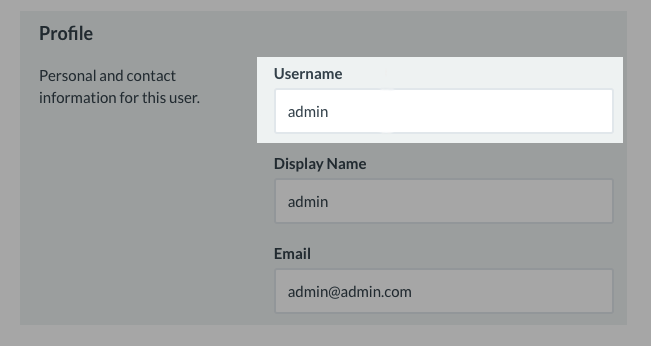
For any other user, a username could be a username or an email address. We recommend taking note of your username and email address when setting them up in Retail POS. You can check a user's credentials by navigating to Setup > Users in Retail POS. To learn more about setting up user profiles in Retail POS, view this article here.
Comments
0 commentsArticle is closed for comments.